How to Change an Email Account's Password in DirectAdmin
You can change your email password in DirectAdmin through the following steps:
1. Log in to your DirectAdmin Account.
2. In the E-mail Manager section, click on E-mail Accounts or type E-mail Accounts in the navigation filter box, and the option will appear. Click on it.

3. Under the Email Account list , the email address appears with a plus icon on the right side.
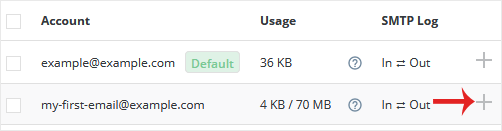
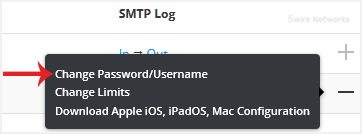
4. Click on the Plus icon and choose Change Password/Username.
5. In the Password field , enter a new password or click on the Generate Random Password icon to generate one.
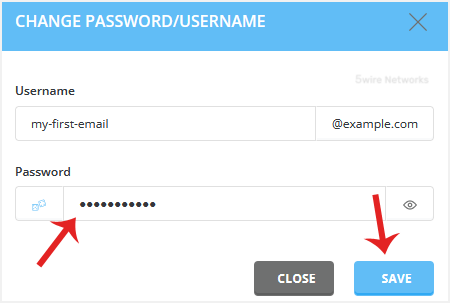
6. Click on Save.
Your password will show in the popup box. Copy it to a safe place.
Updated on: 30/08/2024
Thank you!