How to Create a Database in DirectAdmin
1. Log in to your DirectAdmin Account.
2. In the Account Manager section, click on Databases or type Databases in the navigation filter box, and the option will appear. Click on it.

3. In the Database Name field, enter your desired name for the database. Then, click the Create button located in the bottom right corner.
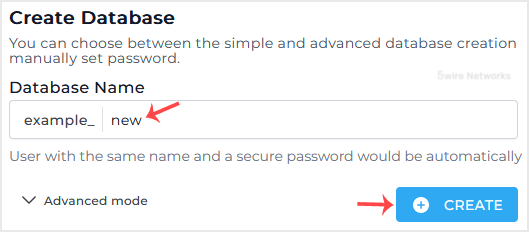
Please, copy the newly-created database details to a safe place.
Updated on: 30/08/2024
Thank you!