How to Delete a Database in DirectAdmin
You can remove your database from the DirectAdmin control panel. However, we recommend that you create a backup of it before removing it.
1. Log in to your DirectAdmin Account.
2. In the Account Manager section, click on Databases or type Databases in the navigation filter box, and the option will appear. Click on it.

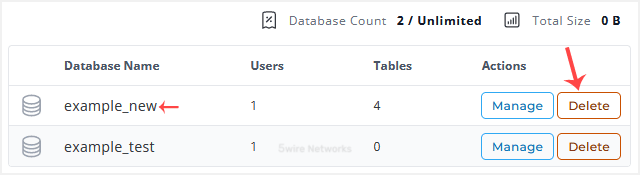
3. From the list of databases , click Delete next to the database you want to remove.
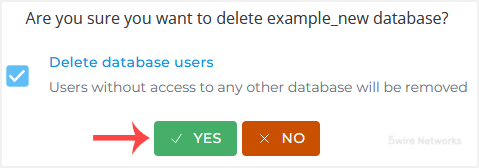
4. Click Yes to confirm deletion.
The selected database should have been deleted.
Updated on: 30/08/2024
Thank you!