How to Generate and Download a Full Backup of Your Account in DirectAdmin
You can make a backup of your DirectAdmin account and download it.
How to Generate a Backup of Your Account in DirectAdmin
1. Log in to your DirectAdmin account.
2. In the Advanced Features section, click on Create/Restore Backups or type Restore in the navigation filter box, and the option will appear. Click on it.

3. Under Site Backup , check-mark options you wish to include in your Backup.
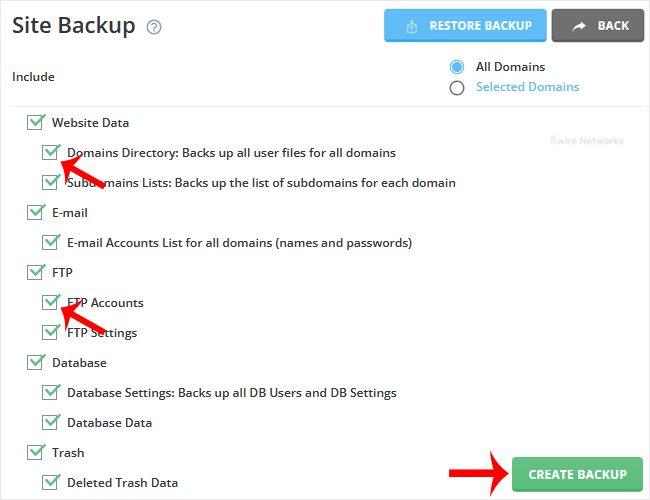
4. Scroll down to the end of the page and click on Create Backup.
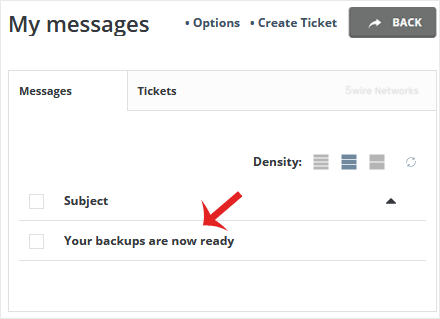
5. It will display a success message such as Backup creation added to the queue. Once the backup is generated, it shows a message in DirectAdmin Panel > > Support & Help Section >> Support Center.
How to Download a Generated Backup of Your Account
1. Log in to your DirectAdmin Account.
2. In the System Info & Files section, click on File Manager or type File Manager in the navigation filter box, and the option will appear. Click on it.

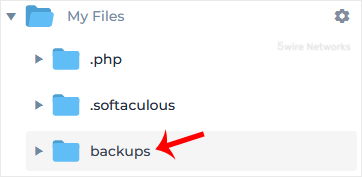
3. Open thebackups directory.
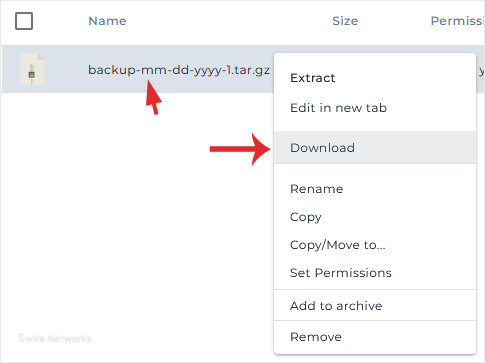
4. Right-click on your newly-generated backup file, and choose Download from the Context Menu. The file will be downloaded to your computer.
Congratulations , you have successfully generated a backup and downloaded it.
Updated on: 30/08/2024
Thank you!