Microsoft Outlook Setup
- Login to cPanel and click "Email Accounts", or go to - <http://5wire.co.uk:2082/cpsess1421341527/frontend/x3/mail/pops.html>
- With the email address you would like to setup, click the More dropdown box and select Configure Email Client.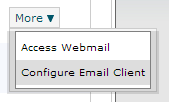
- You are then given the option to download a .reg file which run, will automatically setup within Outlook.
- Alternatively, you can setup your email manually using the Manual Settings provided on the Configure Email Client page.
- Open Microsoft Outlook , go to **File > Info > Account Settings **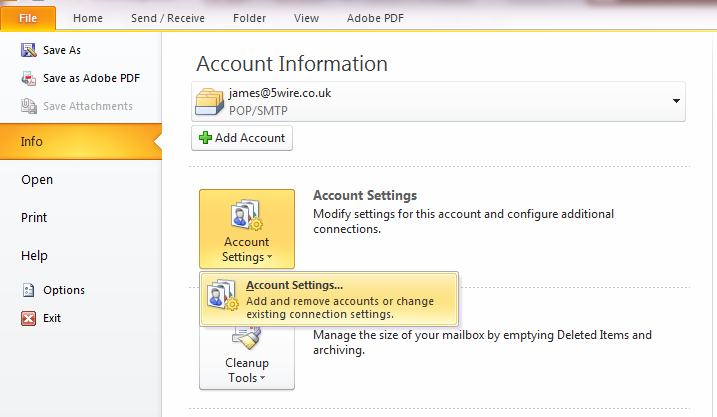
- Click New and then select Manually configure server settings or additional server types , click Next and select Internet Email.****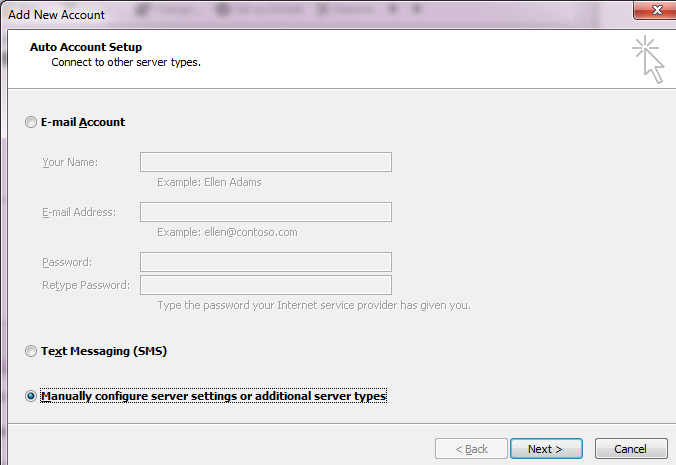
- On the next page, enter in your email settings, the default POP3 and SMTP server is mail.yourdomain.com , alternatively you can use mail.5wire.co.uk. For your account name you must enter the full email address due to security reasons.
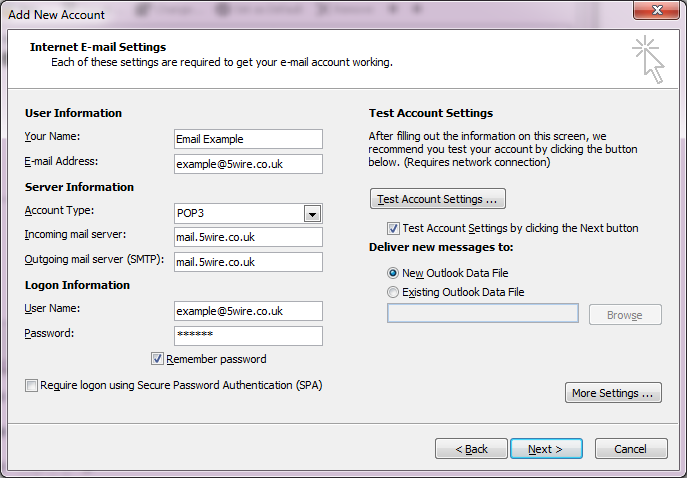
- Before proceeding, click the More Settings button, go onto the Outgoing Server tab and tick the box My outgoing server (SMTP) requires authentication.
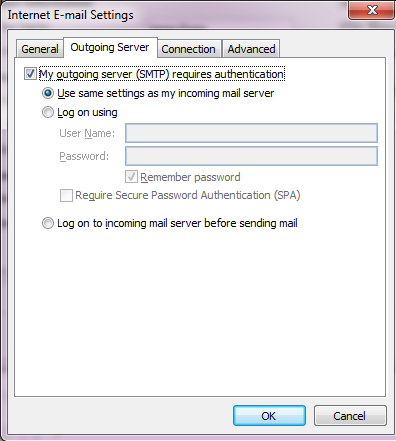
- Click OK , and then Next \- let Outlook test the settings.
- Click Finish.
Updated on: 30/08/2024
Thank you!